iCloud Book Manual
■ iCloud Book
The key features of iCloud Book are as follows.
- Automatically backup data to iCloud
- Sync books between devices with the same Apple ID
- Share books with family or friends
Prerequisites
- Properly signed in with an Apple ID.
- Sufficient iCloud storage space.
- iCloud Drive is enabled.
- iCloud Drive has enabled the permission of "Pennyworth"
■ How to set up iCloud Book
-
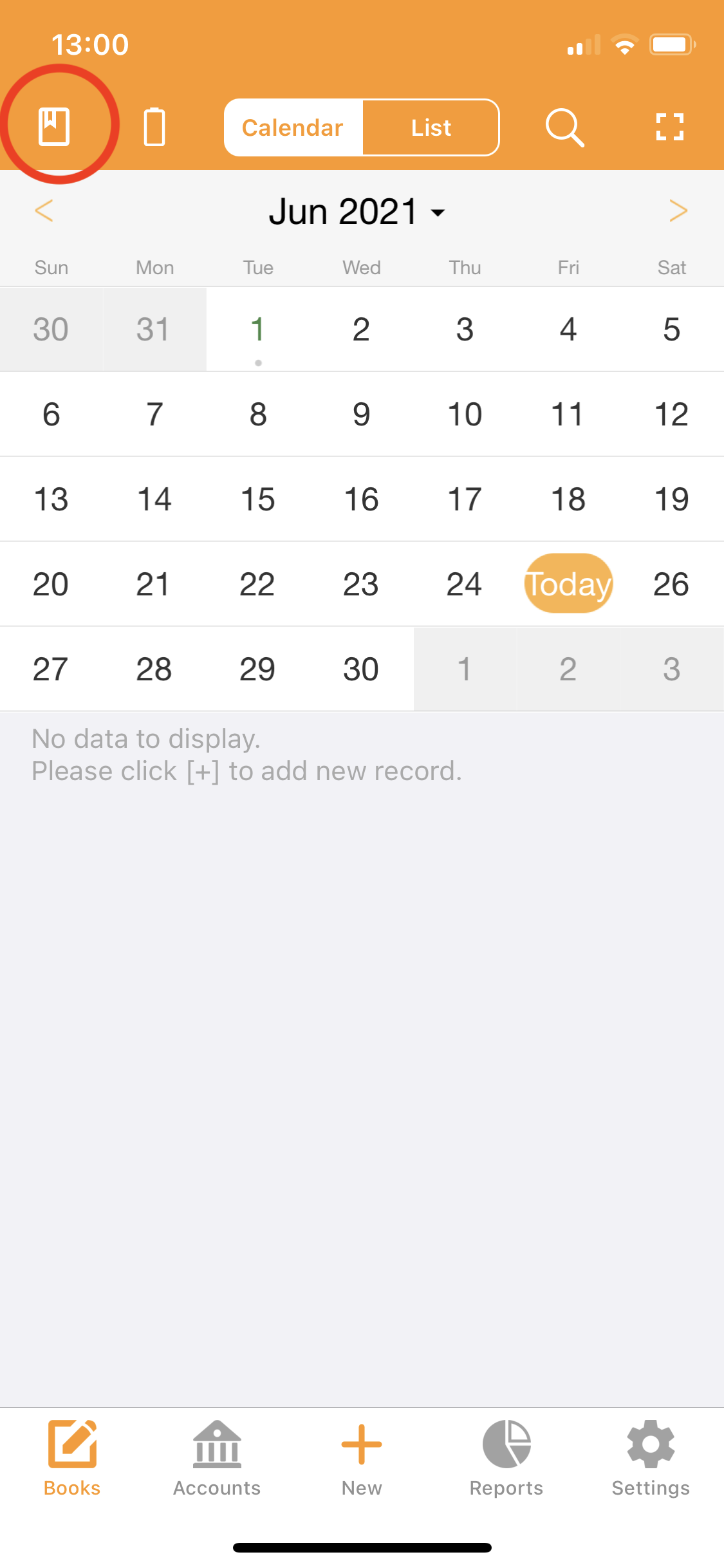
Go to the book list page
Calendar → Tap the [book] button on the upper left
-
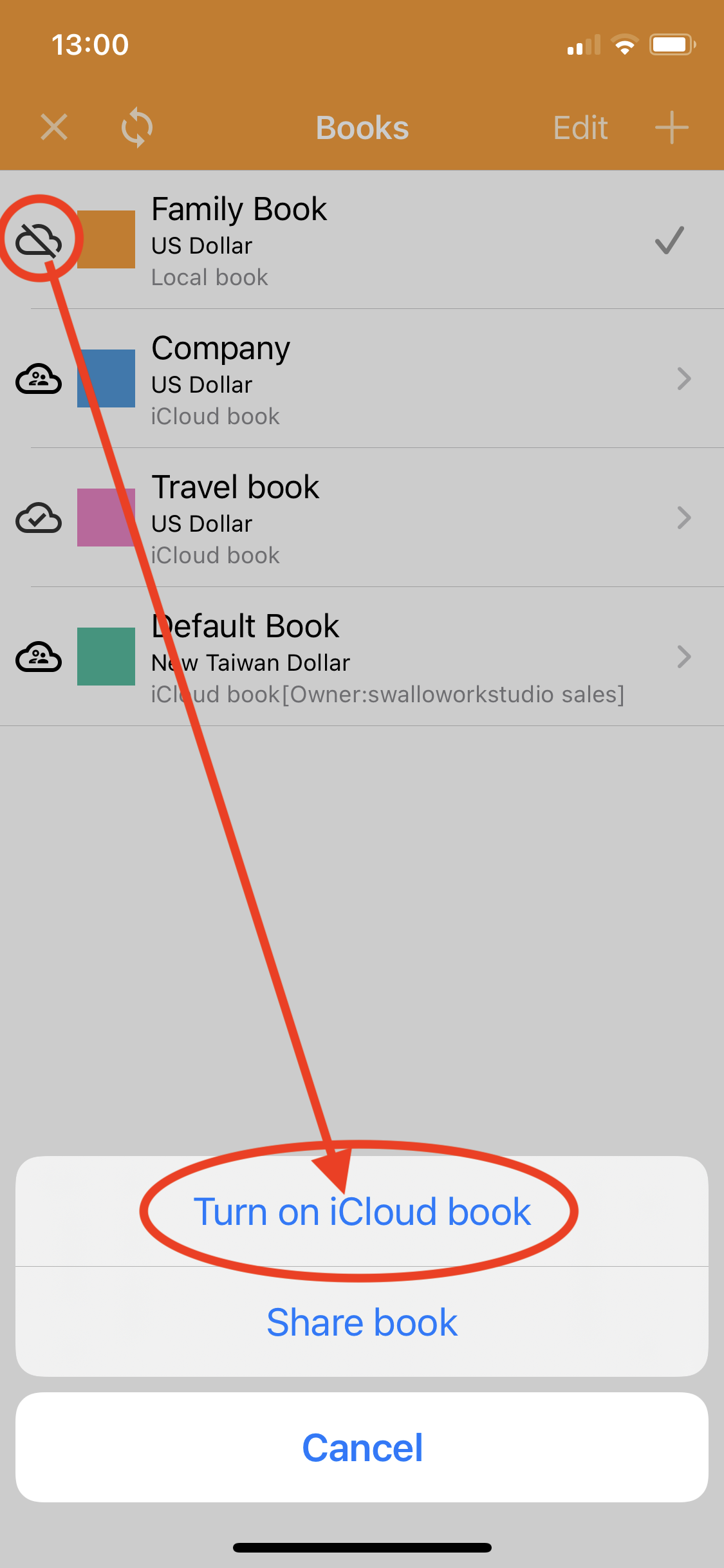
Change the local book to iCloud book
■ How to share book
-
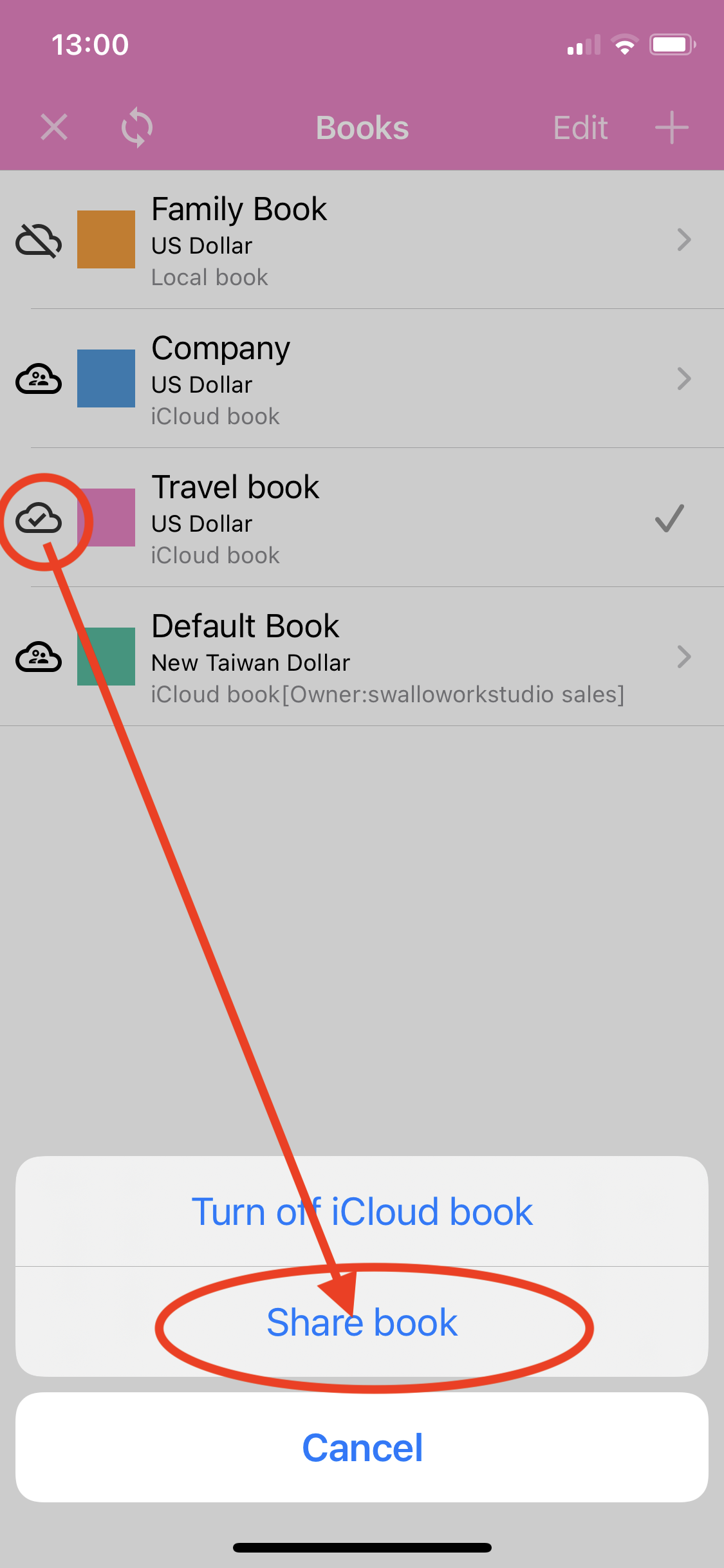
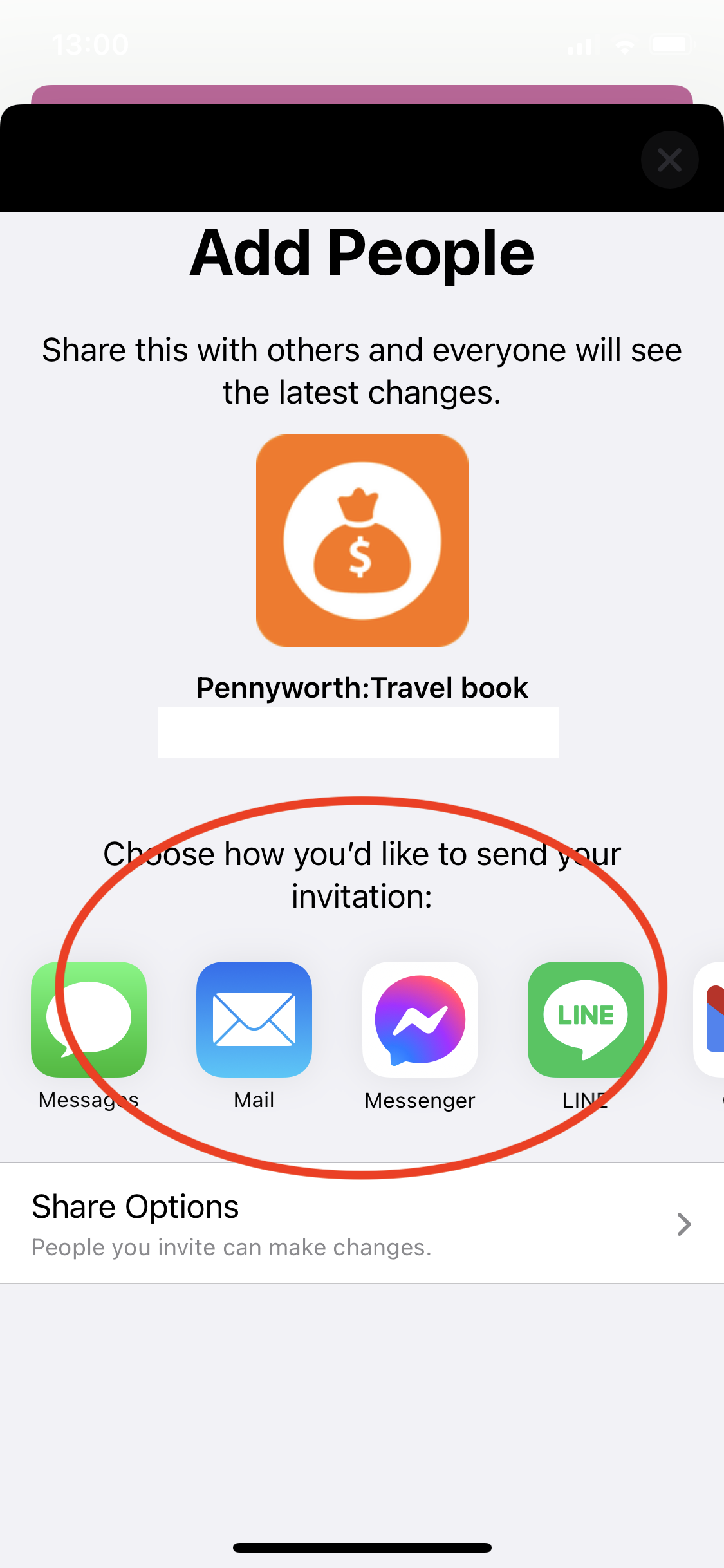
Tap [Share book]
-
Choose how you’d like to send your invitation
-
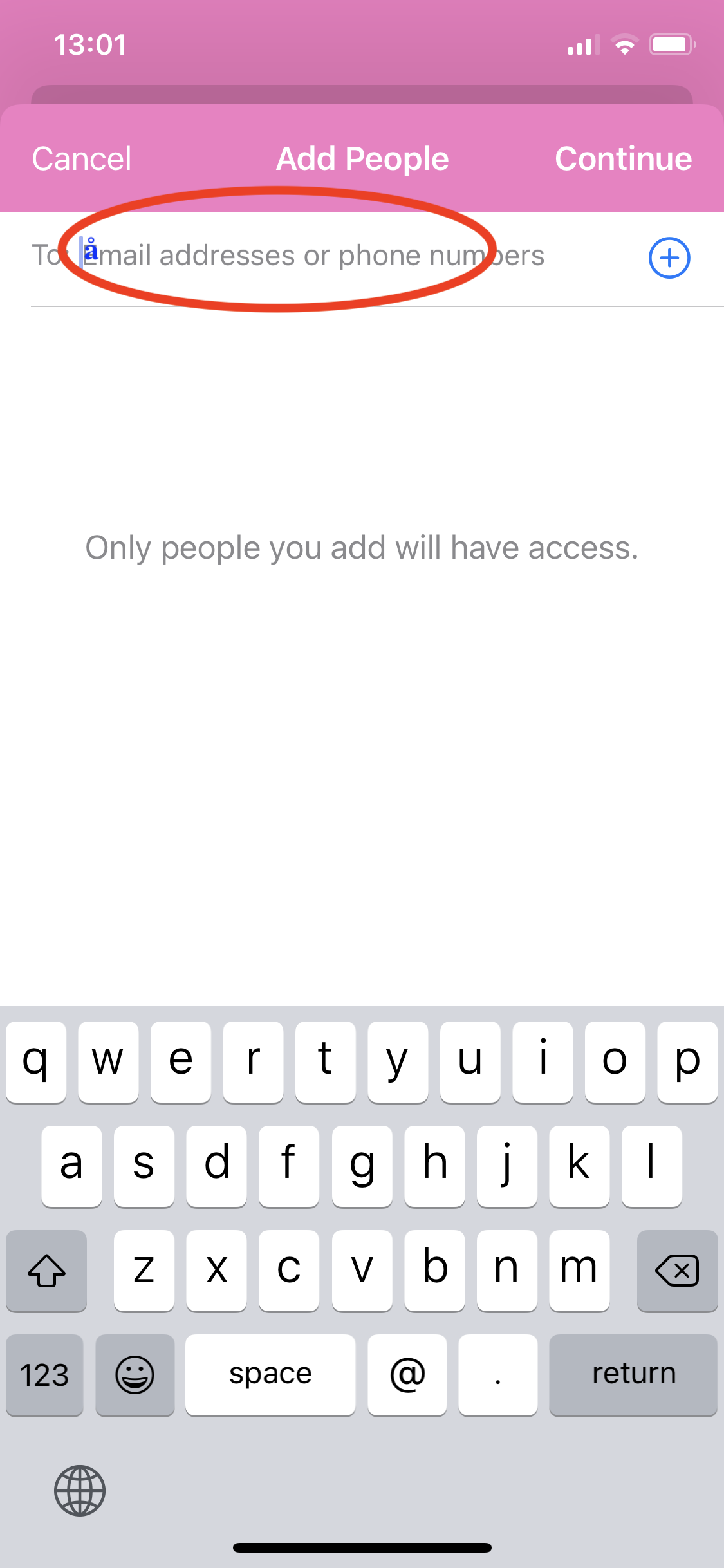
Enter email or phone number
-
Send the share link
-
When the other person opens the link, the book will be shared.
Note) Because the shared link cannot be opened directly in WhatsApp or other apps, you need to copy the link to Safari or other browsers to open it.
■ FAQ
-
Q: When will the data be synced and what should I do if it is not?
A: Sync is basically real-time, but if the app has not been used for a long time, there will be a synchronization delay. In this case, you can synchronize manually.
1.1 Manual sync method 1
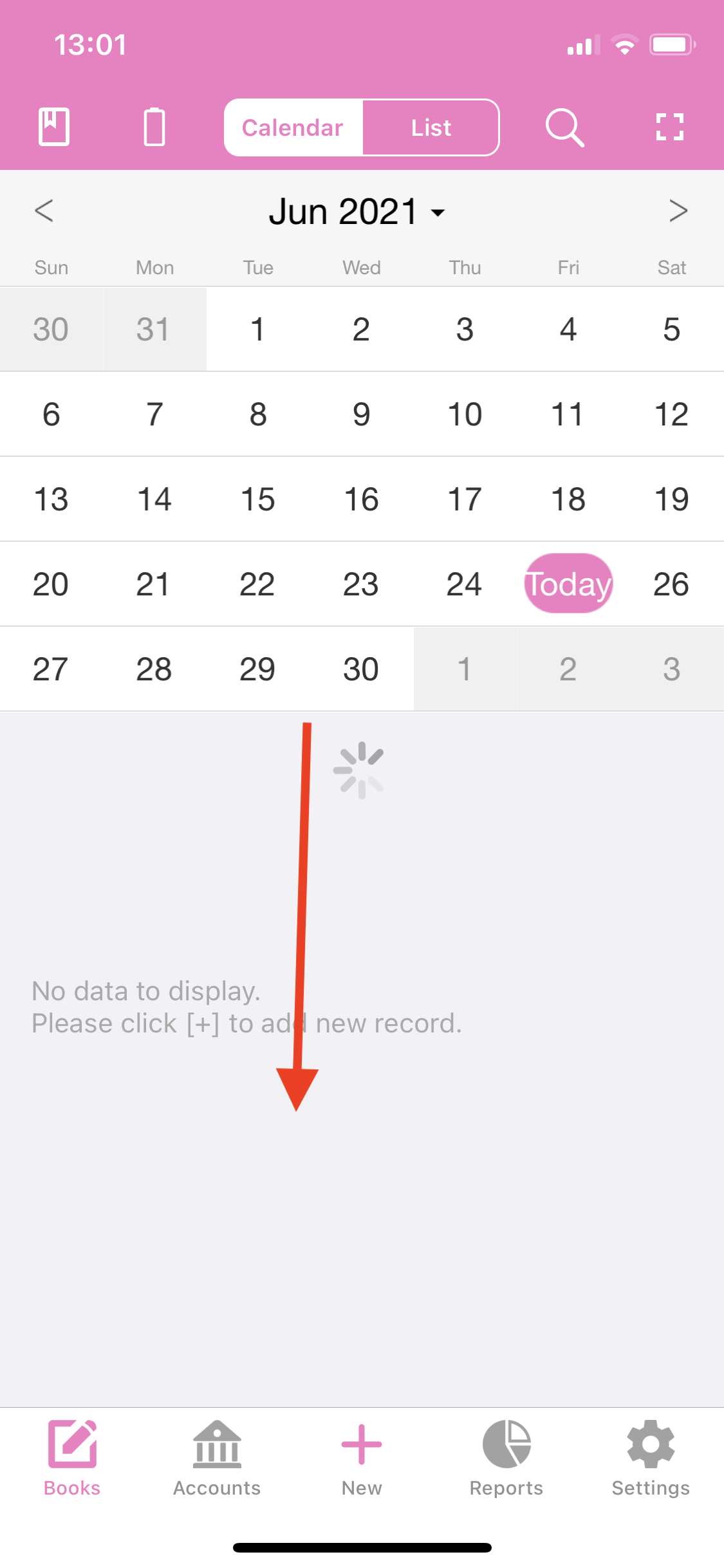
On the calendar page, you can drag down to get the latest records in the cloud for the current book.
1.2 Manual sync method 2
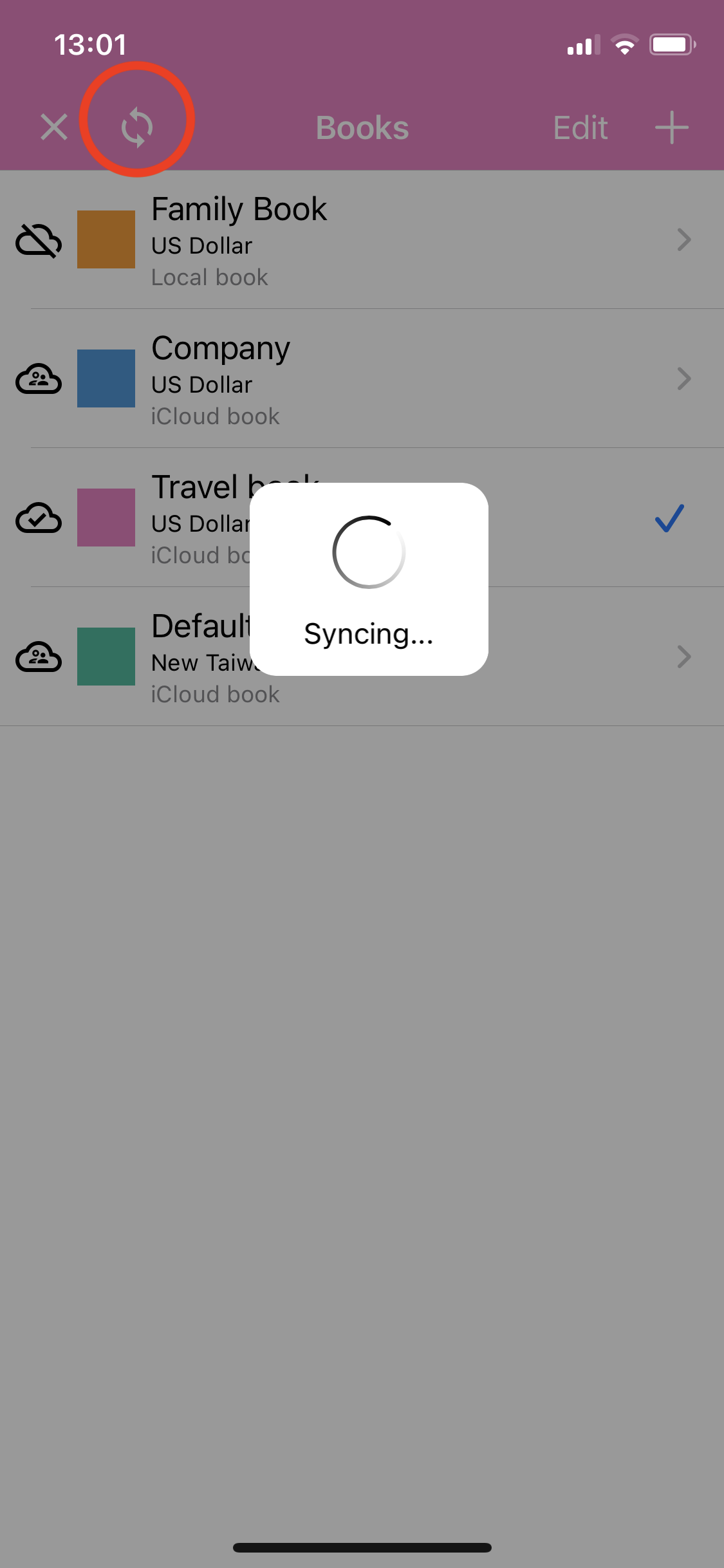
On the book list page, tap the [Sync] button on the left to get the latest records in the cloud for all books.
1.3 Manual sync method 3
On the book list page, press and hold the [Sync] button on the upper left to resync all the cloud records. -
Q: How can I check if there are records on my local that have not been uploaded to the cloud?
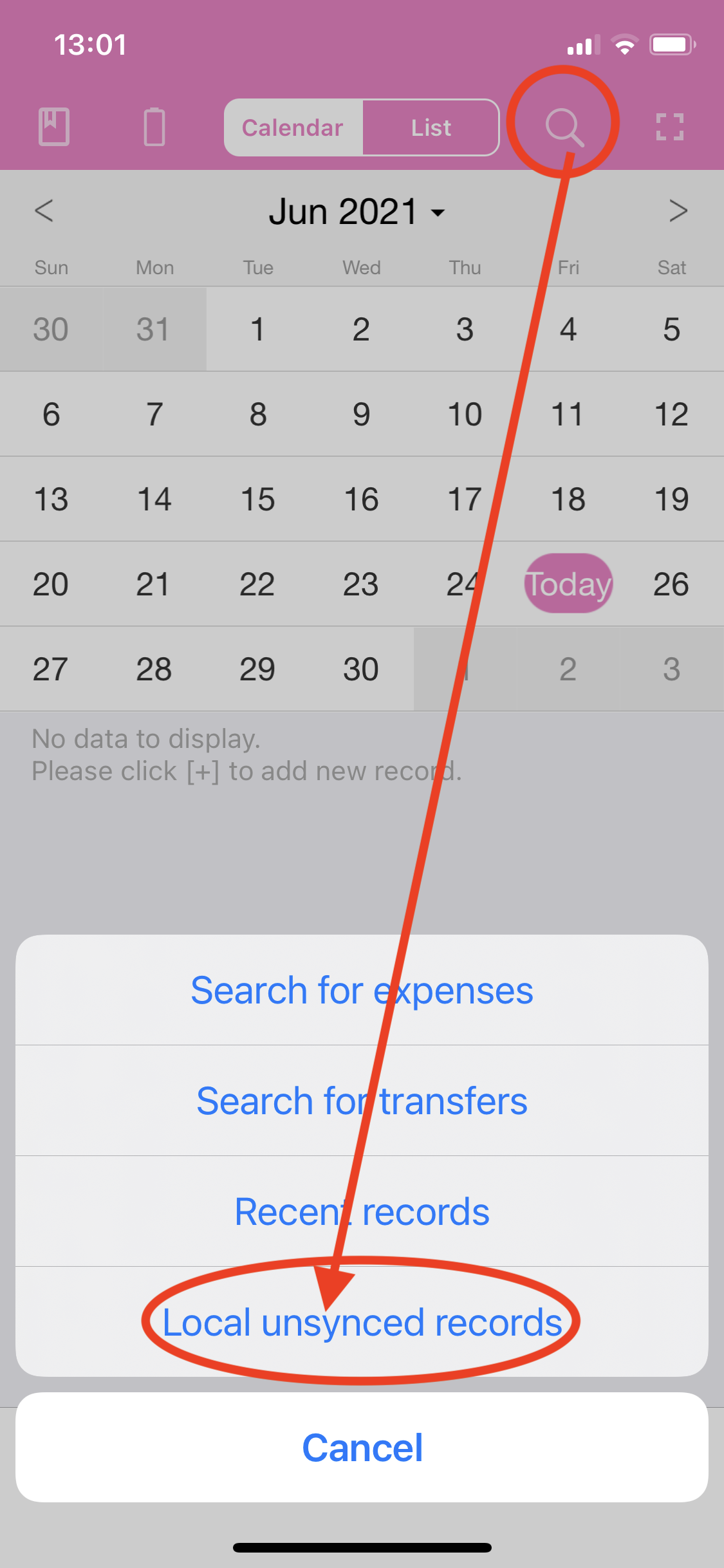
A: From the calendar page, you can open the list of [Local unsynced records]. If there are records that have not been uploaded, tap the [Sync] button on the upper right corner to upload the records.